There are cases where the Checkra1n application does not recognize Apple devices connected to your Mac.
- iPhone or iPad is a passcode disabled.
- When you see the message saying “USB Accessory – Unlock iPhone to use accessories”
These issues can be solved by putting your device into recovery mode!
Putting iPhone or iPad into Recovery Mode
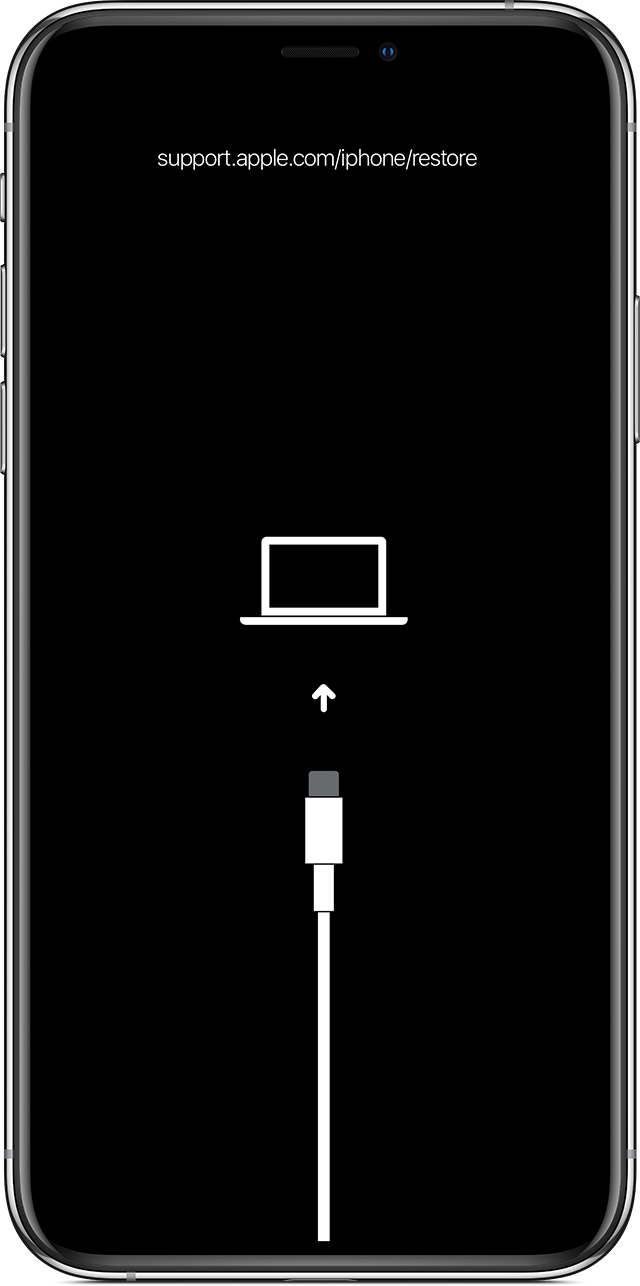
Keep your device connected and wait until the recovery mode screen appears:
- iPad models with Face ID: Press and quickly release the Volume Up button. Press and quickly release the Volume Down button. Press and hold the Top button until your device begins to restart. Continue holding the Top button until your device goes into recovery mode.
- iPhone 8 or later: Press and quickly release the Volume Up button. Press and quickly release the Volume Down button. Then, press and hold the Side button until you see the recovery mode screen.
- iPhone 7, iPhone 7 Plus, and iPod touch (7th generation): Press and hold the Top (or Side) and Volume Down buttons at the same time. Keep holding them until you see the recovery mode screen.
- iPad with Home button, iPhone 6s or earlier, and iPod touch (6th generation) or earlier: Press and hold both the Home and the Top (or Side) buttons at the same time. Keep holding them until you see the recovery mode screen.
Finish the Jailbreak with Checkra1n app
Comments
Post a Comment